

Keeping your computer secure and running smoothly depends heavily on regular system maintenance. One of the most important parts of that maintenance is windows update. It is a built-in Microsoft service that delivers security patches, performance improvements, driver updates, and new features to your Windows operating system.
Many users ignore or delay updates because they think they are unnecessary or time-consuming. However, skipping updates can lead to security risks, system instability, and software compatibility issues. Understanding how windows update works is essential for every Windows user, whether you are using it for work, gaming, study, or business.
In this complete guide, we will explore what Windows Update is, how it works, why it matters, common problems, troubleshooting methods, and best practices to keep your PC healthy and secure.
What Is Windows Update?
windows update is a Microsoft service that automatically downloads and installs updates for the Windows operating system. These updates help improve system security, fix bugs, enhance performance, and introduce new features.
It runs in the background and ensures your computer stays protected from the latest threats and software issues.
Main Types of Updates
- Security updates
- Feature updates
- Cumulative updates
- Driver updates
- Quality updates
- Optional updates
Each type serves a different purpose, but all are designed to improve system performance and safety.
Why Windows Update Is Important
The importance of windows update cannot be overstated. It plays a critical role in protecting your system and ensuring smooth operation.
1. Improves Security
Cyber threats are constantly evolving. Windows updates fix vulnerabilities that hackers could exploit.
2. Fixes Bugs and Errors
Many updates resolve system glitches, crashes, and performance issues.
3. Improves Performance
Updates optimize system resources, making your PC faster and more stable.
4. Adds New Features
Microsoft frequently adds new tools, designs, and functions through updates.
5. Ensures Compatibility
Updated systems work better with modern apps, hardware, and drivers.
How Windows Update Works
The windows update system follows a structured process:
Step 1: Detection
Windows checks Microsoft servers for available updates.
Step 2: Download
Required updates are downloaded in the background.
Step 3: Installation
Updates are installed automatically or after user approval.
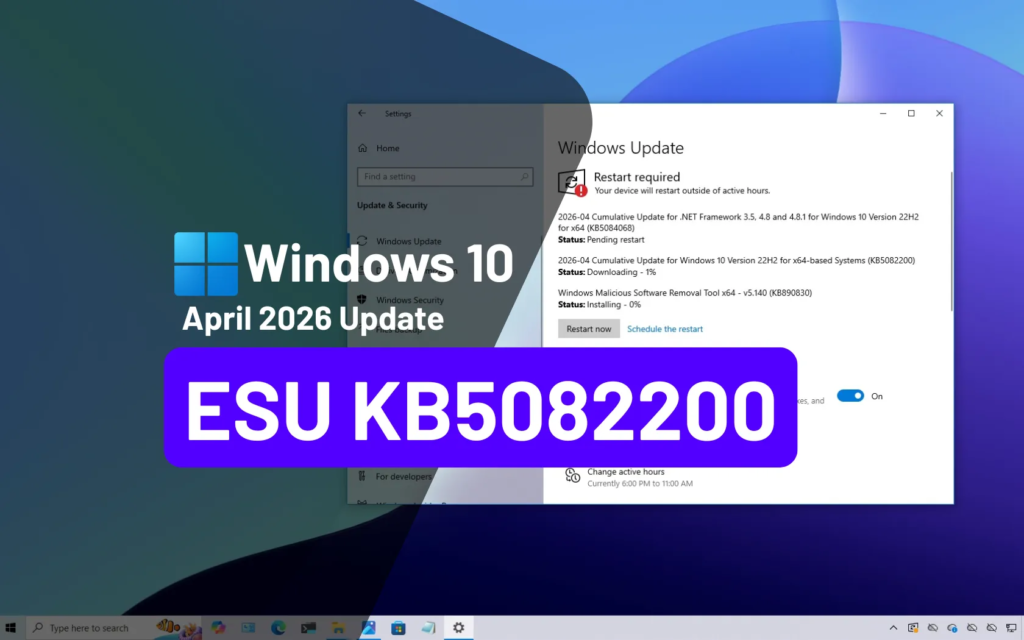
Step 4: Restart
Some updates require a system restart to complete installation.
Step 5: Completion
After restart, the system applies changes and becomes fully updated.
Types of Windows Update Explained
Understanding different update types helps you manage your system better.
Security Updates
These protect your system from malware, viruses, and vulnerabilities.
Feature Updates
These bring new Windows features and design improvements.
Cumulative Updates
These include multiple fixes in one package.
Driver Updates
These improve hardware performance like graphics cards, printers, and audio devices.
Optional Updates
These are not critical but can improve system performance.
Benefits of Windows Update
Using windows update regularly provides several benefits:
Stronger Security
Your PC stays protected against new threats.
Better Performance
System speed and efficiency improve over time.
Fewer Crashes
Bugs and errors are fixed regularly.
Improved User Experience
New features enhance usability.
Hardware Support
New devices and drivers work more smoothly.
Common Windows Update Problems
Although windows update is useful, users sometimes face issues.
1. Update Stuck or Frozen
Updates may stop during installation.
2. Slow Download Speed
Large updates may take time to download.
3. Installation Failure
Some updates fail due to system errors.
4. Restart Loop
The system may repeatedly restart after update failure.
5. Storage Issues
Low disk space can block updates.
How to Fix Windows Update Errors
If you face issues with windows update, try these solutions:
1. Restart Your Computer
A simple restart can fix temporary glitches.
2. Check Internet Connection
Stable internet is required for downloading updates.
3. Free Up Disk Space
Delete unnecessary files to make space for updates.
4. Run Windows Update Troubleshooter
Windows includes a built-in tool to detect and fix update problems.
5. Reset Windows Update Components
Advanced users can reset update services manually.
6. Update Drivers
Outdated drivers can block system updates.
How to Check for Windows Update Manually
You can manually check for updates anytime:
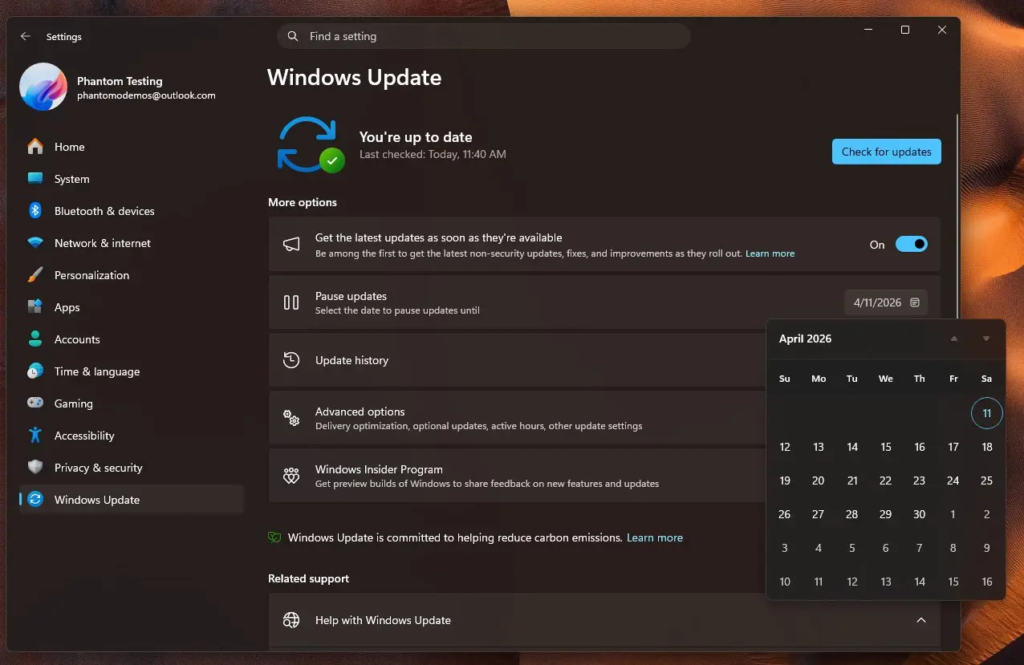
For Windows 10 and 11:
- Open Settings
- Click on Windows Update
- Select “Check for updates”
- Install available updates
- Restart if required
Regular manual checks ensure your system is always updated.
Windows Update and System Performance
Many users worry that windows update slows down their PC. In reality, updates are designed to improve performance, not reduce it.
Positive Performance Effects
- Faster boot time
- Better memory usage
- Improved app performance
- Reduced system errors
Any slowdown after updates is usually temporary and improves after system optimization.
Windows Update and Security Protection
One of the most important roles of windows update is security protection.
It protects against:
- Malware attacks
- Ransomware threats
- System vulnerabilities
- Phishing exploits
- Network attacks
Without updates, your system becomes an easy target for hackers.
Windows Update Settings Explained
Windows allows users to customize update behavior.
Automatic Updates
Windows downloads and installs updates automatically.
Active Hours
You can set working hours to avoid interruptions.
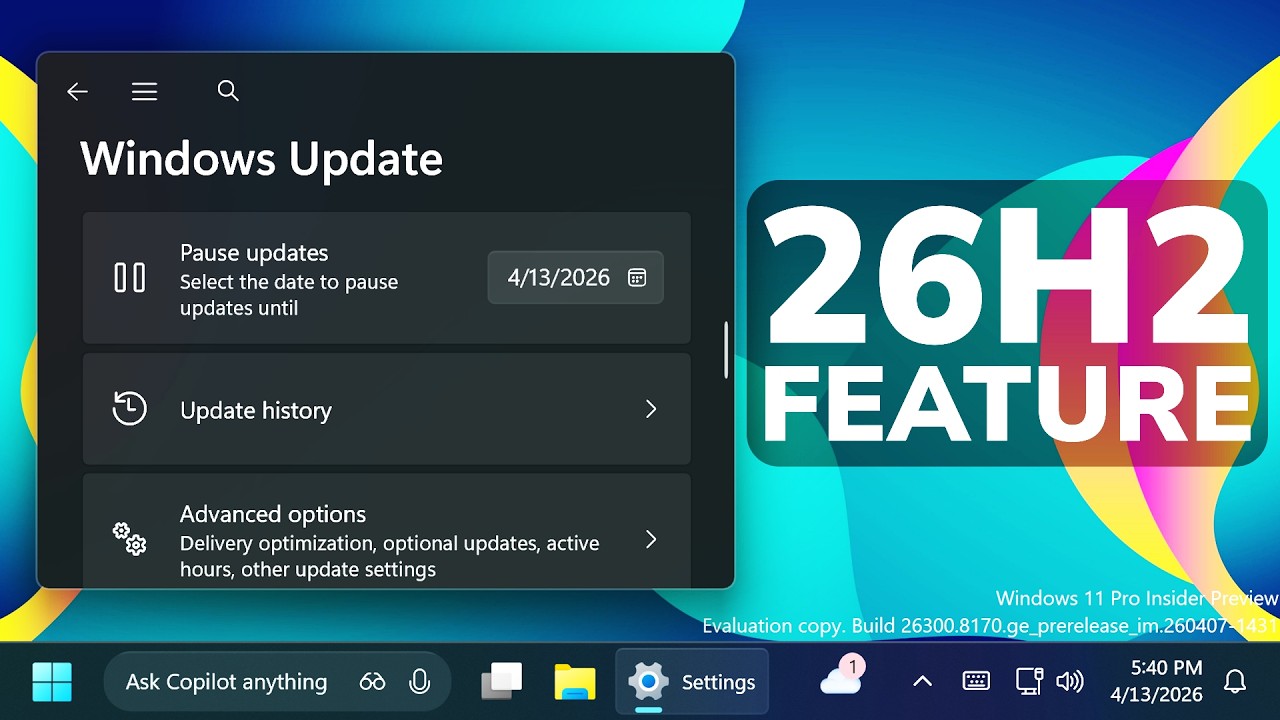
Pause Updates
You can temporarily pause updates for a few days.
Advanced Options
Control restart timing and update notifications.
Windows Update for Businesses
Businesses rely heavily on windows update to maintain secure systems.
Benefits for Organizations:
- Protects sensitive data
- Ensures compliance
- Reduces downtime
- Improves network security
- Keeps systems consistent
IT administrators often manage updates using centralized tools.
Windows Update vs Manual Updates
Automatic Windows Update
- Hands-free
- Regular updates
- Better security
- Recommended for most users
Manual Updates
- More control
- Useful for advanced users
- Requires user attention
Most users should rely on automatic updates for safety.
How to Speed Up Windows Update
If updates are slow, try these tips:
1. Use Fast Internet
Stable connection improves download speed.
2. Close Background Apps
Free system resources for updates.
3. Restart Before Updating
Helps clear temporary system load.
4. Ensure Enough Storage
At least 20GB free space is recommended.
5. Update During Idle Time
Run updates when you are not using the PC.
Windows Update and Gaming Performance
Gamers often worry about updates affecting performance.
Positive Effects:
- Better GPU drivers
- Improved game compatibility
- Reduced crashes
- Enhanced system stability
Sometimes updates may temporarily affect performance, but long-term benefits are significant.
Future of Windows Update
Microsoft continues improving windows update with:
- Faster delivery systems
- Smaller update sizes
- AI-based optimization
- Better background installation
- Reduced restart times
The goal is to make updates smoother and less disruptive.
Frequently Asked Questions
What is Windows Update?
It is a Microsoft service that installs updates for Windows systems.
Is Windows Update necessary?
Yes, it is essential for security and performance.
Can I turn off Windows Update?
It is not recommended as it increases security risks.
Why does Windows Update take so long?
Large files, slow internet, or system issues can affect speed.
Does Windows Update delete files?
No, updates do not delete personal files.
Final Thoughts
windows update is one of the most important components of the Windows operating system. It ensures your PC remains secure, stable, and up to date with the latest features and improvements.
Although updates may sometimes feel slow or inconvenient, they play a critical role in protecting your data and improving system performance. Ignoring updates can expose your computer to serious security risks and performance issues.
By keeping automatic updates enabled and following best practices, you can enjoy a smooth, fast, and secure computing experience.
