

Keeping your computer safe has become more important than ever. Cyber threats, malware, ransomware, and hacking attempts continue to grow every day. One of the best ways to protect your device is by installing every windows security update released by Microsoft. These updates are designed to fix security weaknesses, improve system stability, and deliver better performance.
they think they are unnecessary or time-consuming. However, skipping updates can expose your computer to serious risks. A single missed patch can allow hackers to exploit vulnerabilities and gain access to your personal files, passwords, and sensitive information.
In this complete guide, you will learn everything about windows security update, why it matters, how to install updates, common problems, benefits, troubleshooting tips, and best practices to keep your PC secure.
What Is a Windows Security Update?
A windows security update is a patch or software improvement released by Microsoft to fix vulnerabilities in the Windows operating system. These updates focus on protecting users from threats such as viruses, spyware, malware, ransomware, and unauthorized access.
Unlike feature updates that introduce new tools or design changes, security updates are mainly focused on safety and system protection.
Main Goals of Security Updates:
- Fix known vulnerabilities
- Block malware attacks
- Improve firewall and antivirus integration
- Enhance user privacy
- Strengthen system stability
- Protect business and personal data
Security updates are usually released monthly, but Microsoft may also issue emergency updates when serious threats are discovered.
Why Windows Security Update Is Important
Many people underestimate the value of regular updates. In reality, installing every windows security update is one of the easiest ways to stay safe online.
1. Protects Against Cyber Threats
Hackers constantly search for weaknesses in operating systems. Security updates patch those weaknesses before attackers can exploit them.
2. Prevents Malware Infections
Updates often improve Microsoft Defender and other built-in security tools, helping your PC detect and remove harmful files.
3. Safeguards Personal Information
Your passwords, banking details, emails, and private documents can be targeted by cybercriminals. Updates reduce this risk.
4. Improves System Stability
Some updates fix bugs that cause crashes, freezing, or software errors.
5. Ensures Compliance for Businesses
Companies need updated systems to meet cybersecurity standards and data protection regulations.
Types of Windows Security Updates
Understanding the different update categories can help you manage your PC better.
Critical Updates
These fix severe vulnerabilities that could allow remote attacks or system takeover.
Definition Updates
These updates improve Windows Defender virus definitions to detect the latest threats.
Cumulative Updates
These packages include multiple fixes, including security patches and bug repairs.
Emergency Updates
Released quickly when a serious zero-day vulnerability is found.
Driver Security Updates
Sometimes hardware drivers receive security improvements too.
How Windows Security Update Works
Microsoft identifies vulnerabilities through internal testing, security researchers, and user reports. Once a flaw is discovered, engineers create a patch and distribute it through Windows Update.
The process usually follows these steps:
- Vulnerability discovered
- Security patch developed
- Testing completed
- Update released
- Users download and install
- Device becomes protected
This system helps millions of users stay secure worldwide
How to Check for Windows Security Update
Installing updates manually is simple. Follow these steps:
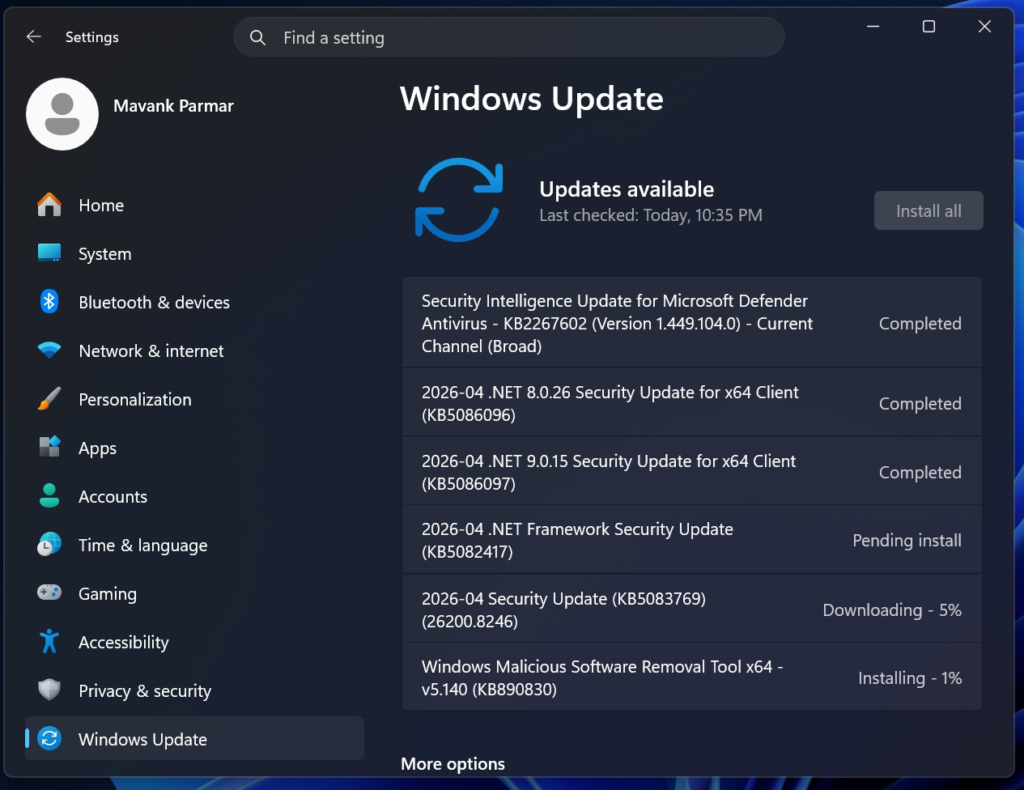
On Windows 11:
- Open Settings
- Click Windows Update
- Select Check for updates
- Download available updates
- Restart your PC if required
On Windows 10:
- Open Start Menu
- Go to Settings
- Click Update & Security
- Choose Windows Update
- Click Check for updates
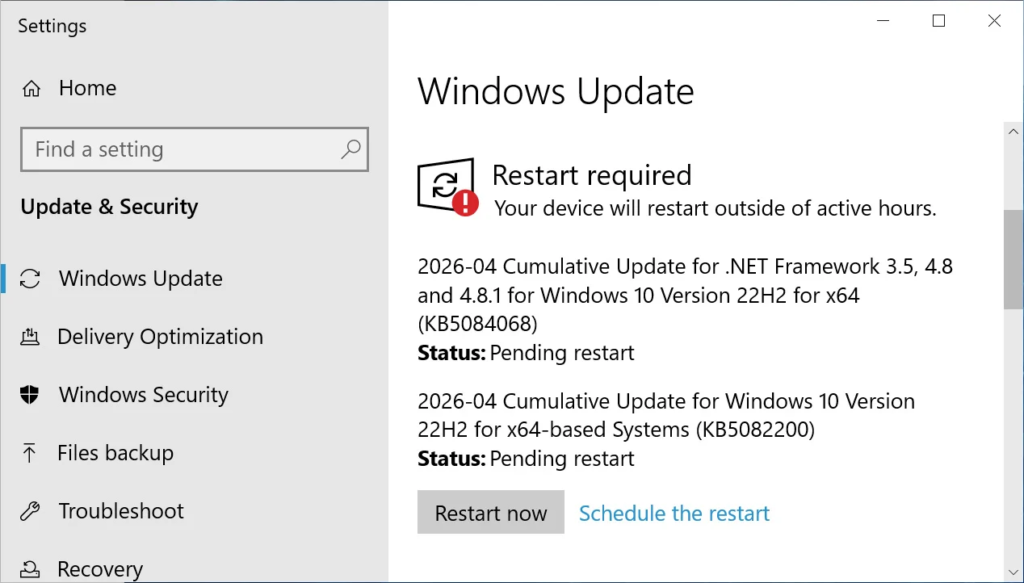
Checking regularly ensures you never miss an important windows security update.
How Often Are Windows Security Updates Released?
Microsoft commonly releases updates on the second Tuesday of every month. This day is widely known as Patch Tuesday.
However, urgent patches may be released anytime if serious threats are detected.
Typical Update Schedule:
- Monthly security updates
- Weekly Defender definition updates
- Emergency patches when needed
- Optional preview updates occasionally
Keeping automatic updates enabled is the best solution.
Benefits of Installing Windows Security Update
There are many advantages to staying updated.
Windows Security Update Improves Security
The biggest benefit is stronger protection against cyberattacks.
Windows Security Update Enhances Performance
Some patches optimize memory use, system responsiveness, and startup speed.
Windows Security Update Fixes Bugs
Updates solve problems such as app crashes, printer issues, and network failures.
Windows Security Update Supports Compatibility
New updates help Windows work better with the latest hardware and software.
Windows Security Update Protects Businesses
Organizations reduce downtime and security breaches by keeping devices updated.
Common Problems After Windows Security Update
Although updates are important, some users face issues after installation.
Slow Performance
Older devices may feel slower temporarily after large updates.
Restart Loops
Sometimes updates fail and cause repeated restarts.
Driver Conflicts
Printers, graphics cards, or Wi-Fi adapters may need new drivers.
Installation Errors
Insufficient storage or corrupted files can block updates.
App Compatibility Problems
Older software may need updates to work correctly.
Most issues can be fixed easily with troubleshooting steps.
How to Fix Windows Security Update Errors
If an update fails, try these solutions.
1. Restart Your PC
A simple reboot can solve temporary issues.
2. Free Disk Space
Delete unnecessary files if storage is low.
3. Run Windows Update Troubleshooter
Go to Settings and use the built-in troubleshooter.
4. Check Internet Connection
Stable internet is required for downloading updates.
5. Update Drivers
Install the latest drivers from hardware manufacturers.
6. Use Command Prompt Tools
Advanced users can run:
- SFC /scannow
- DISM repair commands
These tools repair damaged system files.
Should You Turn Off Automatic Updates?
Some users disable updates to avoid interruptions. This is not recommended.
Risks of Turning Off Updates:
- Increased hacking risk
- Missing urgent patches
- Vulnerable software
- Poor system performance
- Compatibility problems
Instead of disabling updates, schedule active hours so Windows updates at convenient times.
Best Practices for Windows Security Update
Follow these smart habits to keep your PC safe.
Enable Automatic Updates
Let Windows download patches automatically.
Restart Promptly
Complete installation by restarting when required.
Backup Important Files
Create backups before major updates.
Use Genuine Windows
Official versions receive full support and updates.
Keep Antivirus Active
Use Microsoft Defender or trusted antivirus software.
Avoid Suspicious Downloads
Updates help, but safe browsing habits are still essential.
Windows Security Update for Businesses
Businesses face larger cybersecurity risks because they manage sensitive customer data and multiple devices.
Why Companies Need Updates:
- Prevent ransomware attacks
- Protect financial records
- Secure employee accounts
- Meet legal requirements
- Reduce downtime
IT administrators often use tools like:
- Windows Server Update Services (WSUS)
- Microsoft Intune
- Endpoint Manager
These platforms simplify update management across many computers.
Windows Security Update vs Feature Update
Many users confuse these two update types.
| Security Update | Feature Update |
|---|---|
| Fixes vulnerabilities | Adds new features |
| Smaller download size | Larger download size |
| Released monthly | Released less often |
| Focuses on protection | Focuses on experience |
Both are useful, but security updates are the most urgent.
How to Know If Your PC Is Fully Updated
You can confirm status in Windows Update settings.
Look for messages like:
- You’re up to date
- Last checked today
- No updates available
Also verify:
- Microsoft Defender definitions are current
- Drivers are updated
- No pending restart required
This ensures your latest windows security update has been installed.
Tips to Speed Up Updates
Sometimes updates feel slow. Use these tips:
Use Fast Internet
Better download speed reduces waiting time.
Keep Device Plugged In
Laptops should stay connected to power.
Restart Before Updating
Fresh system resources can help.
Remove Unused Files
Extra storage space improves installation speed.
Update During Idle Hours
Install updates when you are not working.
Future of Windows Security Update
Cybersecurity continues to evolve rapidly. Microsoft is investing in smarter defenses powered by AI, cloud threat detection, and zero-trust security systems.
Future updates may include:
- Faster patch deployment
- Better ransomware protection
- Smarter phishing defense
- Stronger privacy tools
- More seamless background updates
This means regular updates will remain essential for every Windows user.
Frequently Asked Questions
Is Windows Security Update Free?
Yes, security updates are free for supported Windows versions.
How Long Does an Update Take?
Small updates may take minutes, while larger ones can take longer depending on your device.
Can I Skip One Update?
You can, but it increases risk. Installing all security patches is best.
Do Updates Delete Files?
Normally no, but backups are always recommended.
Why Does Windows Need So Many Updates?
New threats appear constantly, so regular patches are necessary.
Final Thoughts
A windows security update is one of the most important tools for keeping your computer safe, stable, and efficient. Whether you use your PC for work, gaming, study, or personal tasks, regular updates protect your system from modern threats.
Ignoring updates may save a few minutes today, but it can create major problems later. Cyberattacks, malware infections, and data theft are far more costly than a quick restart.
Make it a habit to check for updates, keep automatic updates enabled, and follow good security practices. By doing so, you can enjoy a faster, safer, and more reliable Windows experience every day.
